

Are you trying to fix performance issues and crashes in Last Train Home? Here are all the solutions you can try to improve your experience.
Overall, you can try various steps, including upgrading GPU drivers, verifying the integrity of system files, reinstalling the game, and transferring game files if you played the demo. Let’s go through all possible solutions in turn.
Remember, you should try everything; the same solution won’t work for everyone.
How to Improve Performance in Last Train Home

Let’s go through everything you can try to improve performance, reduce stuttering and lagging, and fix any crashing issues in Last Train Home.
Update GPU Drivers
The most straightforward fix with any new game release is to check for a new update for your GPU Drivers.
Check your GPU’s software (Nvidia or AMD) for updates. These can be downloaded and installed within a few minutes and usually help improve performance.
Ensure You Meet Minimum Hardware Requirements
Check the system requirements for Last Train Home and ensure you’ve got enough. Most Importantly, ensure you’ve got enough VRAM and RAM.
Lower Graphics Settings
If updating your GPU Drivers didn’t fix the issue and you’re not sure about system requirements, it might be that your system is not powerful enough to run the game on max graphics.
Turn everything to low/off and see if your FPS improves overall in Last Train Home. Also, consider lowering the FPS Limit from Options -> Graphics -> FPS Limit.
Delete Demo Save Files
If you played in the demo of Last Train Home or participated in the beta event, you should delete the saved files that were automatically transferred.
Right-click on Last Train Home on Steam, select ‘Properties’, ‘Installed Files’, and then ‘Browse’ to access the game’s files. Find the saved files (named “SaveGames”) there and delete them while keeping a backup copy on your desktop if you delete something else by mistake.
Verify Integrity of Game Files
Another possible way to fix crashing and performance issues in Last Train Home is to check for an issue with the game files. Find the game on your Steam Library, right-click on it, and select ‘Properties’.
Navigate to the ‘Installed Files’ tab on the left and select ‘Verify integrity of game files’. Please wait a few minutes until it’s completed, and try relaunching the game.
Close Background Apps
Ensure that while you’re playing, no background apps or programs are running that could be using too much of your CPU/GPU/RAM.
The easiest way to check that is by opening the Task Manager (Ctrl+Shift+Esc) and checking if other programs are using your resources.
Reinstall the Game
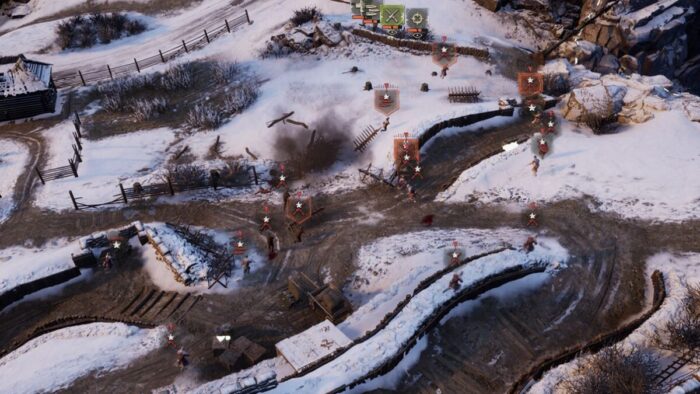
The last thing to try is reinstalling the game while ensuring you’ve deleted everything. Start by accessing the game’s local files. Save a copy of the ‘SaveGames’ folder to ensure you can keep your progress, uninstall the game from Steam, and delete the ‘LastTrainHome’ folder in the following path:
- C:\Program Files (x86)\Steam\steamapps\common\
Now install the game again and copy-paste the save folder inside the files. If you can’t find the ‘SavedGames’ folder in the new installation, play until you reach the main menu.
Wrapping up
To summarize, you can fix crashing and performance issues in Last Train Home by following all the steps above.
Check recommended settings, upgrade GPU Drivers, lower graphics settings, delete demo save files, verify integrity of game files via Steam, close any background apps, and perform a fresh install of the game if everything else fails.
Which solution fixed the issue for you? Do you have any other suggestions that may help? Feel free to share them in the comments below.
If you want to try a different game instead, consider checking out our guide on the best Nixi build in Death Must Die.

He has a Master’s Degree in Philosophy, which allows him to always come up with a fresh approach to solving in-game puzzles and challenges, but also to create content that’s to the point, clean and easy to follow.
- Best Family Co-op/Party Games for PS5 - June 10, 2026
- Best RPGs with Romance and Relationship Options (2026 Update) - June 9, 2026
- Palia Open the Door Quest Guide: All 3 Riddle Answers - June 9, 2026