
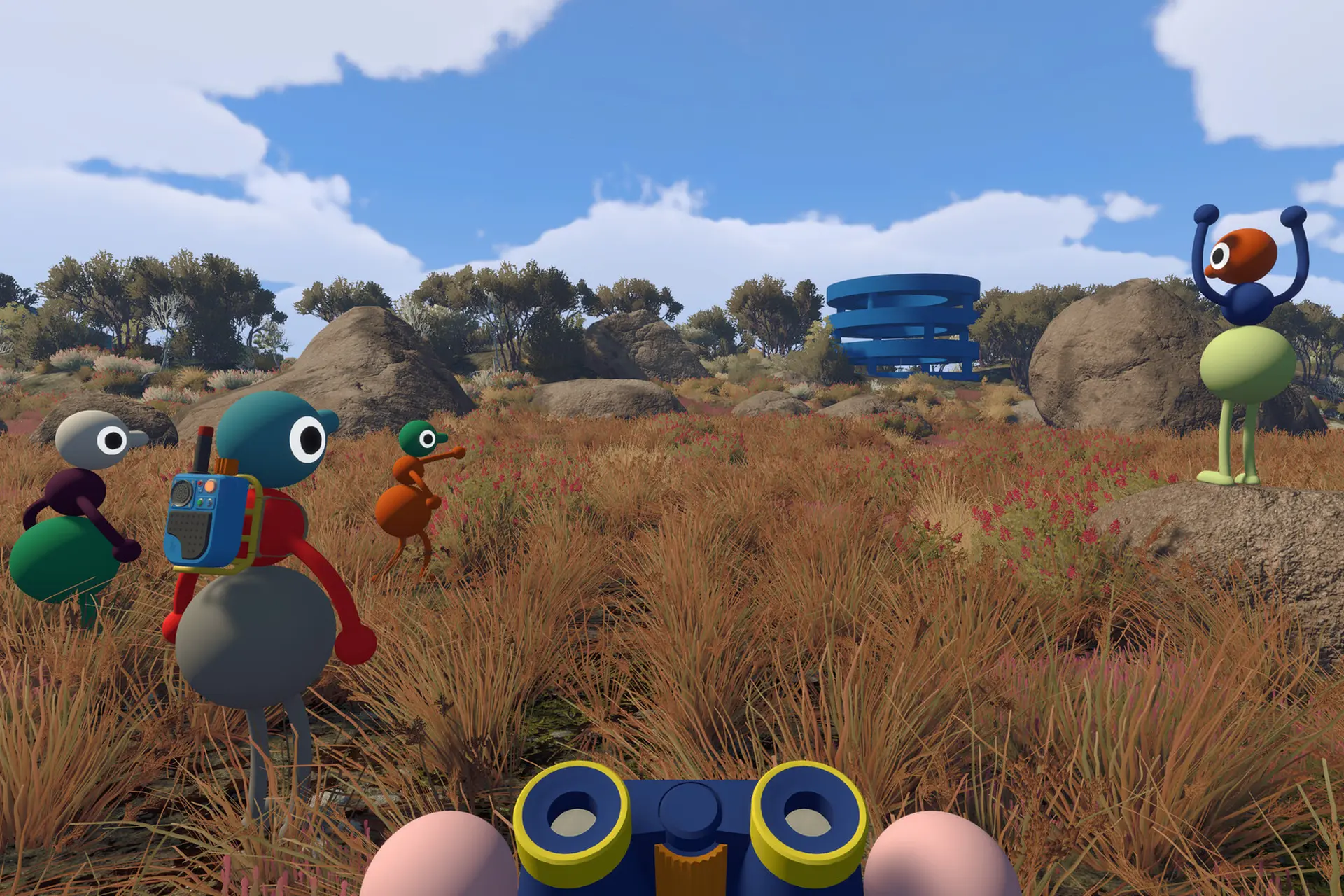
There is a small but annoying problem with playing through Big Walk with friends: what happens when the person hosting your adventure is no longer available, for whatever reason.
Fortunately, you don’t have to start a brand new game until they return. Instead, you can transfer the current game save to another player, allowing someone else to host the game and continue from where the group left off.
You can handle the transfer manually through the game’s save folder or use SaveSync to make the process much easier when players need to switch hosts repeatedly.
Below, I will guide you through each method so you know exactly what to do to keep enjoying your current Big Walk adventure even without the original host and makes it easier to beat the game and complete the extra 7 Challenge Puzzles afterwards.
The Manual Way: Transfer the Big Walk Save Yourself
The simplest solution does not require anything beyond access to the Big Walk save files. The biggest problem is that this must be done by the current host – so a bit of planning is required.
Start by opening your file browser and pasting this exact location into the address bar:
%USERPROFILE%/AppData/LocalLow/House House/Big Walk/user_data/save_games
That folder contains your Big Walk saves. Find the save file you want to continue playing with, then send that file to the player who is going to become the new host.
This is where the method gets a little tedious. If different members of your group want to host at different times, you need to transfer the save back and forth between the players. Whoever has the latest save can send it to the next person who needs to host.
The basic process is therefore:
- Open
%USERPROFILE%/AppData/LocalLow/House House/Big Walk/user_data/save_games. - Find the save you want to use.
- Send the save file to the new host.
- The new host can use that save to continue the adventure.
- Transfer the save back and forth whenever another player needs to host.
There is nothing particularly complicated about this approach, but it can become a chore when your group regularly changes hosts. That is where SaveSync comes in (you can get it on Steam here – this is not a sponsored or affiliate link).
SaveSync Handles the Repetitive Part
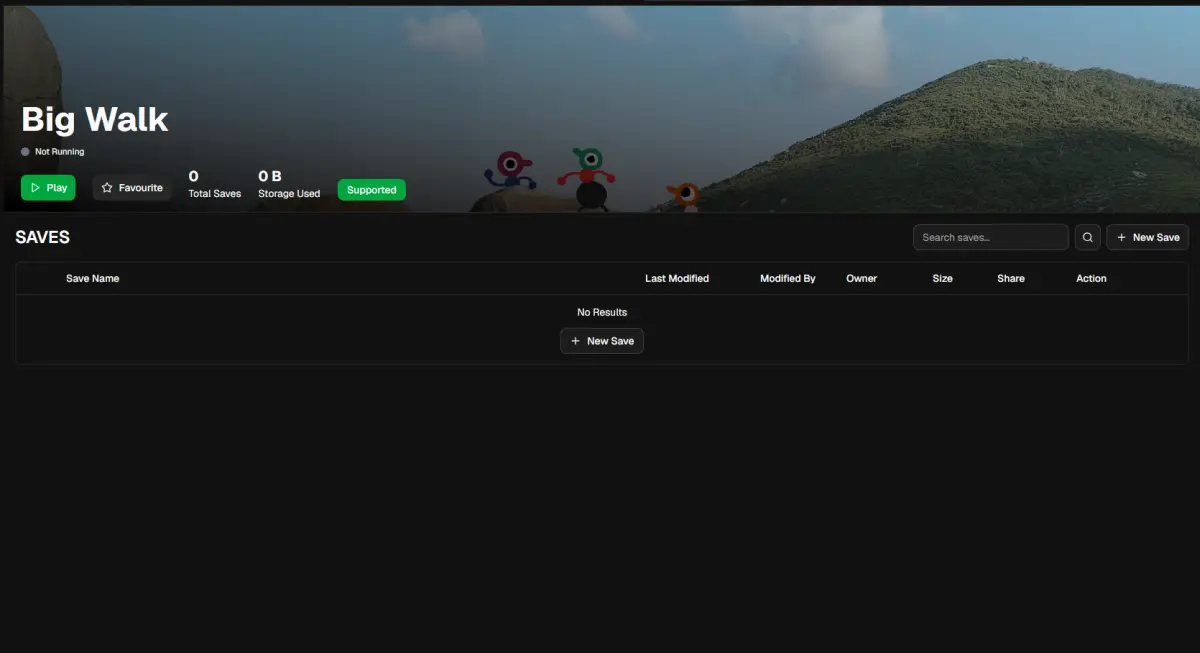
If you do not want to keep manually sending the Big Walk save between players, SaveSync is a solid alternative. It automates the save-sharing process and provides additional save-management features.
To get started, open SaveSync and select Big Walk from the list of games on the left. This will take you to Big Walk’s save management page.
From there, you can add the save you want to share.
Also read Task Bar Hero: How to Beat Stage 2-8 on Every Difficulty.
Create a SaveSync Copy of Your World
Look in the top-right corner and click “+ New Save.” A dialog will appear showing the saves that are available.
Select the save you want to use from the list, then click “Create Save.”
The save will begin syncing. Do not move on to the sharing step until that process has finished. Wait for the green checkmark, which indicates that the save has completed syncing.
Once you see the green checkmark, the save is ready to share.
Also read: Big Walk 100% Achievement Guide
Share the Save With the Next Host
Click the share icon on your save. SaveSync will then allow you to search for your friend’s Steam username.
Find the friend who needs to take over hosting and click “Share.”
The shared save will then appear in that friend’s game list. It will be shown as a save shared by you, making it clear which save has been shared with them.
Your friend now needs to click “Activate.”
Once they activate the shared save, the world is ready to use. Your friend can host the game with that save, and the save will sync automatically.
That removes the need to keep manually sending the save file back and forth every time someone else wants to host. For groups that regularly rotate the host, that can save quite a bit of unnecessary file shuffling.
Also read: Star Sailors Tier List
SaveSync Also Keeps a Save History
There is another useful feature here: SaveSync maintains a full save history.
This allows you to track who uploaded the save and when. More importantly, you can also revert to any previous save if you need to go back to an earlier version.
That gives you another reason to use SaveSync if several people are going to be handling the same Big Walk save.
Instead of having a single file passed between everyone’s computers with no history attached to it, you have previous versions available through the service.
Wrapping up
You have two easy methods for continuing your Big Walk adventure even without the original source. While SaveSync is the easier one, it is a paid app on Steam, so if you don’t mind a bit of manual work, the free method I shared first will work just find.
If you still have questions or need additional help locating the file – or anything else, let me know in the comments down below.

- Nivalis Nights: Make More Money Easily & Build a Profitable Noodle Bar - October 2, 2026
- Nivalis Nights Guide: Tips & Tricks to Master the Game - October 2, 2026
- Pokémon Scarlet & Violet: ALL Shiny Sandwich Recipes - September 25, 2026