

One of the first things you should do in Disney Dreamlight Valley is to create a Cloud Account.
While you can skip this part, I highly recommend doing it. It allows you to link your account to multiple devices without having to start over.
In this guide, I’ll explain how to create a cloud account in Disney Dreamlight Valley step by step. In addition, I’ll showcase its importance.
Why you Need a Cloud Account in Disney Dreamlight Valley
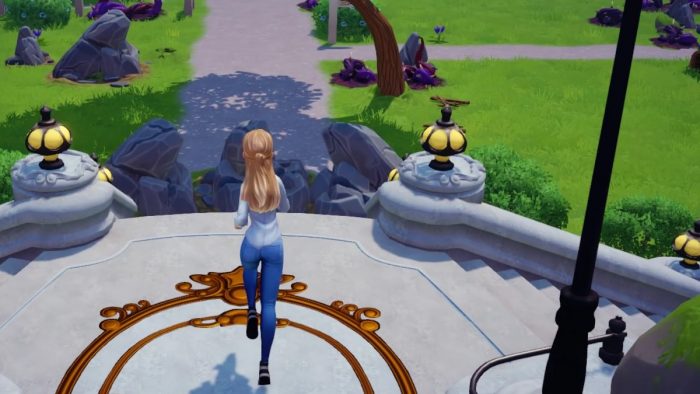
While you have the option to skip making a cloud account, creating one can make things significantly easier for you. Disney Dreamlight Valley is available in all the following platforms:
- PC
- Xbox One
- Xbox Series X/S
- Nintendo Switch
- PlayStation 5
- PlayStation 4
- Mobile
Making a cloud account allows players to link their progress between different platforms. You can play on your PC in the morning and continue your progress via Nintendo Switch when you won’t be at home.
In short, a cloud account in Disney Dreamlight Valley allows you to link your devices and ensure no progress will be lost from your account.
How to Create a Cloud Account in Disney Dreamlight Valley
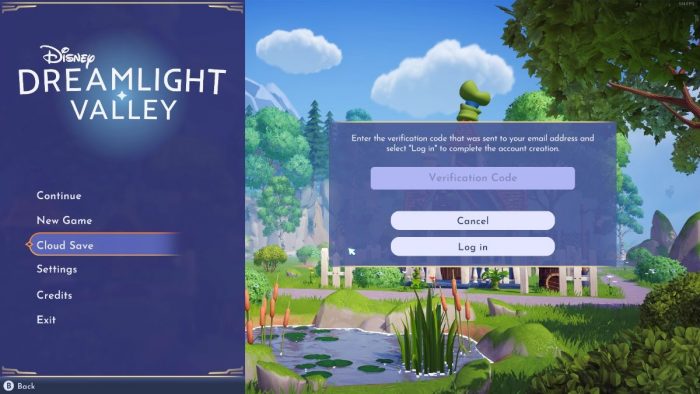
Now that we’ve established the importance of a cloud account, let us examine the step-by-step process for making one. Here are all the steps to create a new cloud account in Disney Dreamlight Valley:
- Launch Disney Dreamlight Valley
- From the Main Menu, select ‘Cloud Save’
- Add your email and password
- Choose ‘Create Account’
- Find the verification code sent to your email
- Type the verification code and select ‘Log in’
And that’s it. You can now claim everything from your mail, which will be linked to your cloud account.
If you’re facing any issues because you can’t find the verification mail or are missing the verification code screen, check our troubleshooting guide.
How to Link Cloud Account to Other Platforms
You’ve just made your account on the platform of your choice. If you want to maintain your progress on a different platform, the process is fairly similar. Here’s what you need to do:
- Launch Disney Dreamlight Valley
- From the Main Menu, select ‘Cloud Save’
- Add your email and password
- Select ‘Log in’
Also, if you want to reset your password in Disney Dreamlight Valley, follow the same progress. However, instead of choosing ‘Log in’, choose ‘Reset Password’. Then follow the instructions sent to your email.
Conclusion
In short, Disney Dreamlight Valley cloud accounts are important for linking your progress between platforms. They can be created through the game’s main menu.
If you’re trying out the game and your performance isn’t on point, consider checking our guide on how to improve your FPS in Disney Dreamlight Valley.
Have you made a cloud account yet? Will you link it to another platform? Let us know in the comments below.

He has a Master’s Degree in Philosophy, which allows him to always come up with a fresh approach to solving in-game puzzles and challenges, but also to create content that’s to the point, clean and easy to follow.
- My Time at Sandrock: How to Romance All Bachelors - September 25, 2026
- My Time at Sandrock: How to Romance All Bachelorettes - September 25, 2026
- My Time at Sandrock Romance Options – All Bachelors and Bachelorettes - September 25, 2026
This is my first time playing this game??
i have used the cloud save mode and was able to get my saved progress switched from the switch over to PC. Now i am trying to login onto this new website starlight dreamers and it says my email isn’t registered but i clearly have gotten a reset link for password to the email on my cloud save. so i just don’t understand what i did wrong. thank u for ur time.
That’s not an official Disney Deamlight Valley website, so you need to create a new account there if you want to use it.